Getting Around
GemWM starts the way an Atari ST did: a desktop in the ST’s colours, and the menu bar along the top. Everything else follows from GEM’s rules, with a modern window manager under them.
The menu bar
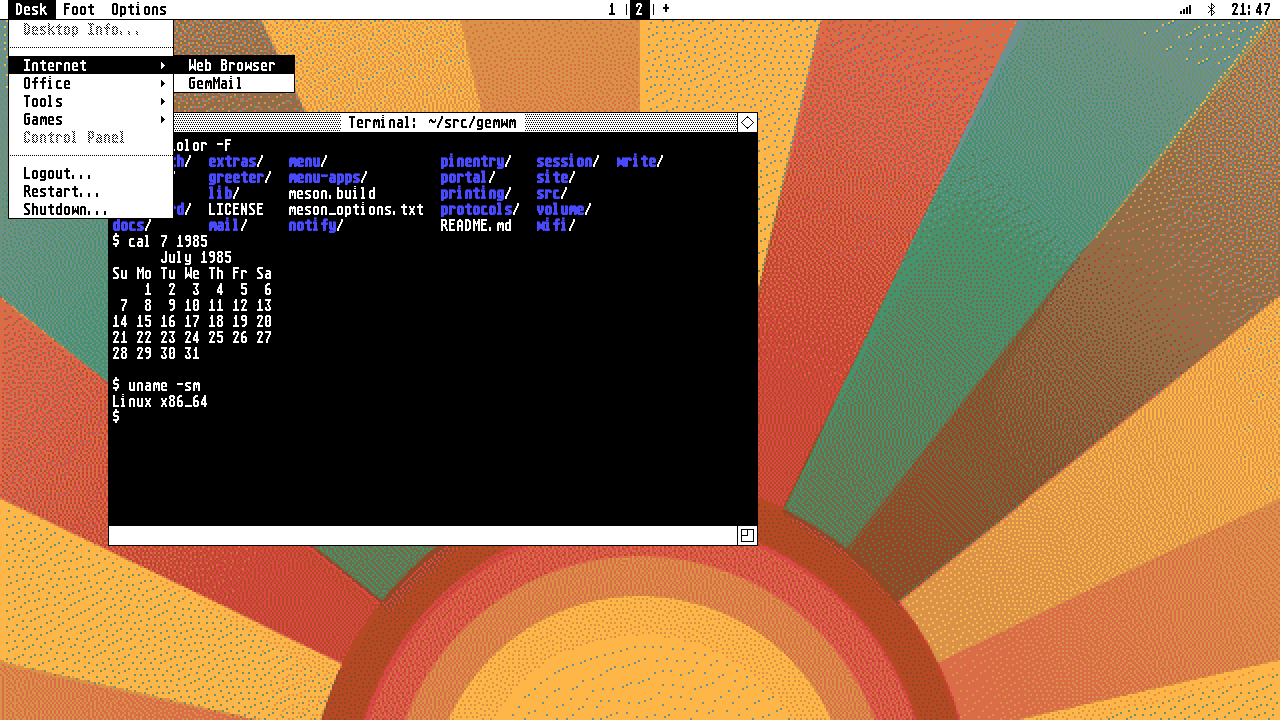
Rest the pointer on a title and its menu drops; click an item to run it. Click the title, or anywhere outside, to close it again: a click outside never reaches the window underneath, as on the ST.
As in GEM, the menu bar belongs to what’s in front. With a window focused it shows Desk, a menu named after the window’s application (Firefox, Foot…) with Close Window, Full Size and Move to Workspace, then the application’s own menus if it has any, and Options. With nothing focused, it’s the desktop’s menus: Desk, File, View and Options.
Desk is where programs start: Internet (the web browser, mail), Office (GemWrite), Tools (a terminal, printing, notifications), Games. Log Out, Restart and Shut Down are at the bottom of Desk, so they’re always there. All of it can be changed: see the menu bar.
In the middle, 1 | 2 | + are the workspaces; at the
right are the menu apps: Wi-Fi, Bluetooth, volume, the battery and the clock.
Windows
- Drag the title bar to move a window: an outline follows the pointer, and the window moves when you let go, as in GEM.
- The sizer (bottom right) resizes it the same way.
- The closer (top left) closes it; the fuller (top right) makes it the size of the screen, and back.
- Clicking a background window only brings it to the top; it doesn’t click whatever’s under the pointer.
First keys
| Keys | Does |
|---|---|
| Super+T, Alt+Return | open a terminal |
| Super+B | open the web browser |
| Super+Q | close the focused window |
| Super+Tab, Alt+Tab | the next window (Shift: back) |
| Super+W | the overview: every window at once |
| Super+Z | full size, and back |
| Super+F | fullscreen |
| Super+1..9 | switch workspace |
| screenshot |
While Super is held, the focused window gets a thick pink border, so you can see where your keys will go. The full list, and how to change it, is in key bindings.
Modes
GemWM has three modes, switched in Options > Mode: window (overlapping windows, the default), tiling and scrolling.