GemMail
Email over IMAP and SMTP, offline-first, with optional AI categories, a newsletter rack and a bills ledger.
gemmail
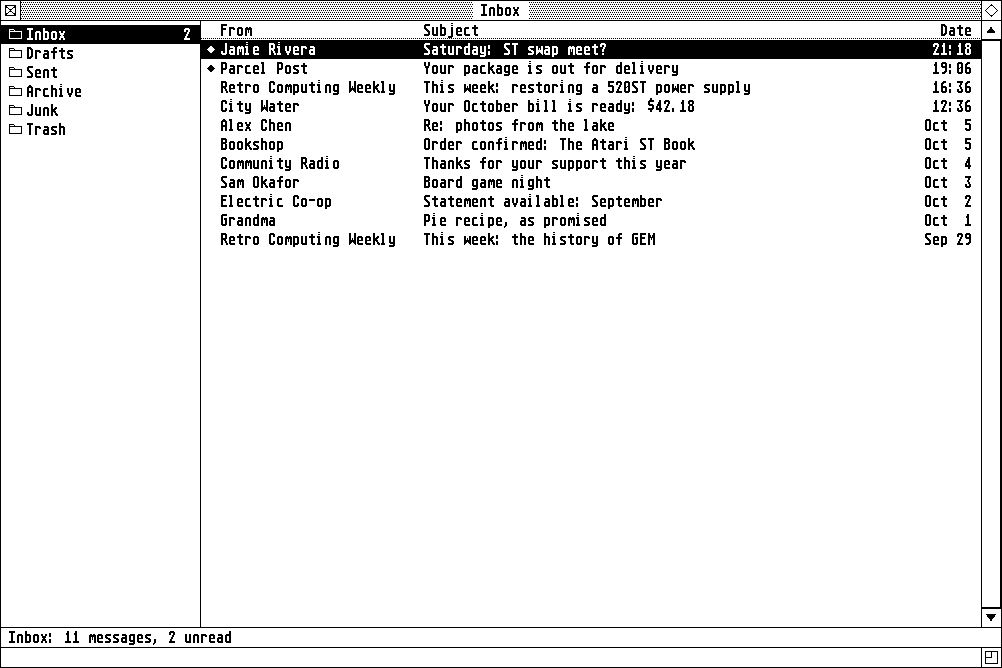
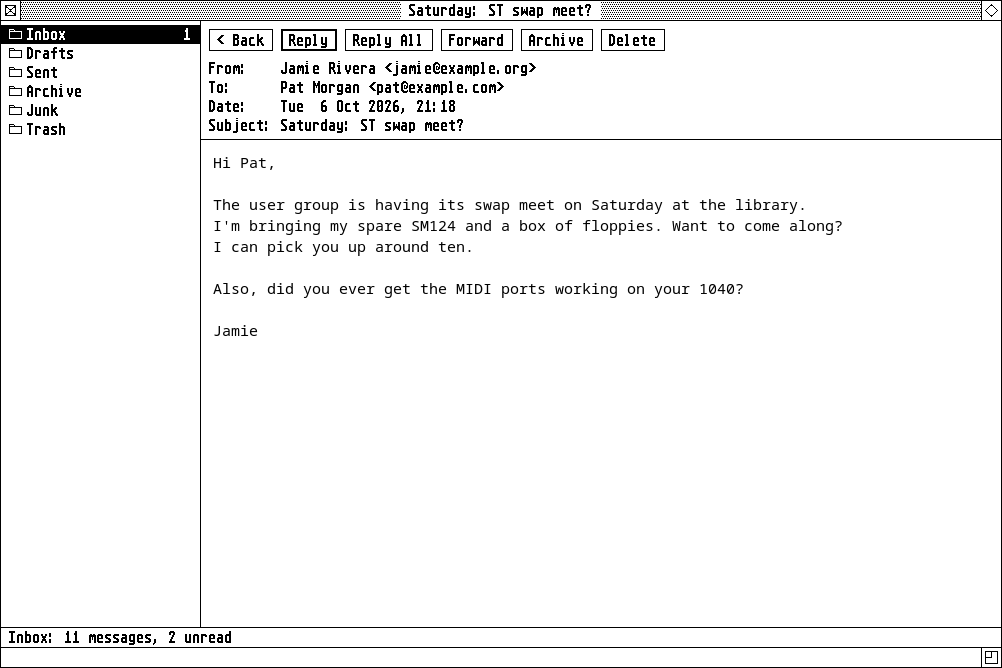
GemMail reads and sends email over IMAP and SMTP. Folders are on the left, with their unread counts; the main pane lists a folder’s newest messages (a diamond marks unread ones), and opening one shows it in that same pane, with Back, Reply, Reply All, Forward, Archive and Delete above it.
It checks for new mail every three minutes, or on F5. Mail is kept in
~/.cache/gemmail, so GemMail opens showing your mail as it was left, then
asks the server only what’s changed. Without a connection, what’s cached still
reads.
Reading and filing
- Archive (A) moves a message to the server’s archive folder; Delete moves it to Trash. Either way, the next message opens.
- Shift-click, Ctrl-click and Ctrl+A select several messages; Archive, Delete and Mark as Read (^U) act on all of them at once.
- Drag messages onto a folder, or Move to Folder… (M).
- File > Empty Trash… deletes everything in Trash for good.
- Attachments are buttons that save them, in GEM’s item selector; pictures attached can be shown under the text.
An HTML message runs no scripts and loads nothing from the web (no tracking pixels) until you press Show Images, for that message, or Always for its sender. Even then, a sender’s images still wait if your mail server says the message may not be theirs (neither DMARC nor DKIM passed).
Messages are written as plain text; Attach… adds files.
AI categories
With AI set up, GemMail can sort your mail into categories, like Bill, Newsletter or Shipping. It’s off until you choose Options > Categorize with AI, since it sends the sender, subject and the start of each message to your AI provider. Messages are categorized in the background, a few at a time, with the progress in the status line; click a category under the folders to see only those.
Message > Categories… puts messages in categories yourself: what you
choose is kept, and your choices go to the model as examples. The categories,
and what each is for, are in ~/.config/gemmail/categories.
Newsletters and Bills
View > Views > Newsletters shows your newsletter mail as a magazine rack: an icon for each publication, newest first, with how many issues you haven’t read. The icons are the publications’ own logos (BIMI, else the site’s icon, else initials).
View > Views > Bills shows your bills as a ledger, a month at a time: each bill’s due date, payee, what it’s for and the amount, read from the bill by AI, with each month’s total and what’s still unpaid. Tick a bill when you’ve paid it; one that pays itself shows Auto, and one past due, Overdue.
Setting up
The account goes in ~/.config/gemmail/settings:
[Account]
from = Jane Doe <jane@example.org>
user = jane@example.org             # the login; the From address if unset
imap = imaps://imap.example.org     # imaps: TLS; imap: STARTTLS (:port)
smtp = smtps://smtp.example.org     # smtps: TLS; smtp: STARTTLS (:port)
password-command = pass show mail   # prints the password
The password command runs when GemMail connects; if it fails, a GEM dialog asks, and the password is kept in memory only. A password manager that locks, like Bitwarden, works as it does for GemWeb. Connections are always encrypted, and the server’s certificate checked.
What it needs
libetpan, GMime 3 and WebKit: pacman -S libetpan gmime3 webkitgtk-6.0.